ESP32 Integration
Real-time location data reception and parsing using the lec & lep commands.
In This Guide
we will walk you through the process of connecting a GrowSpace Developer Tag to an Arduino ESP32 board, and receiving and parsing real-time location data using the lec and lep commands. This step-by-step guide is designed to be beginner-friendly, even for those new to connecting ESP32 with tags. Unlike the UNO, the ESP32 supports multiple hardware serials, making it an ideal board for building compact test environments.
Required Materials
ESP32 Board (e.g. DevKitC)

For serial data reception and parsing
GrowSpace Developer Tag

Location Data Transmitting Device
Arduino IDE
Code Writing and Upload
Jumper Cables (4-pin)
For connecting TX, RX, GND, 3.3V
Arduino IDE Setup
Installation
Download the installation file from the official Arduino IDE website. https://www.arduino.cc/en/software
For Windows users, it is recommended to use the
.msiinstaller.
Add ESP32 Board
Launch the Arduino IDE. โ
File > Preferences

In the Preferences window, add the following URL in the Additional Boards Manager URLs field:

Tools > Board > Board Managerโ Search for ESP32 and click Install for the ESP32 by Espressif Systems package.

After installation, go to
Tools>Board>ESP32 Dev ModuleGo to
Tools>Portand select the automatically detected port for the ESP32.

Serial Connection Setup
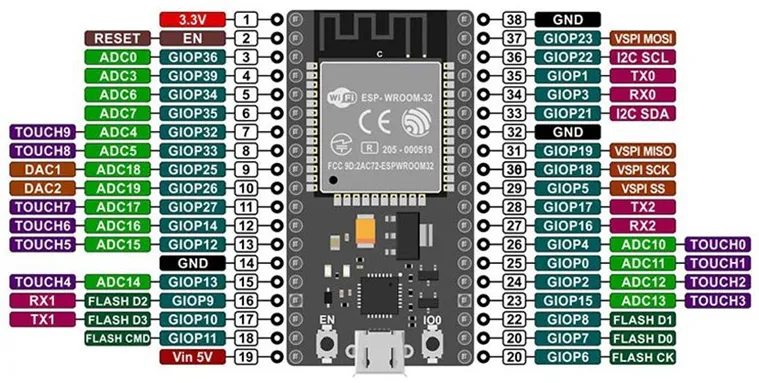
The left connector of the GrowSpace Developer Tag supports 3.3V serial communication. Connect the TX and RX pins of the tag to the TX2/RX2 pins on the ESP32 board as follows:
TX
GPIO 16 (RX2)
RX
GPIO 17 (TX2)
GND
GND
3.3V
3.3V
โ ๏ธ TX โ RX must be connected crossed (TX to RX and RX to TX). Example:
TXโ ESP32 RX,RXโ ESP32 TX

Here is the pinout for the ESP32 DevKit. Please locate the TX2 and RX2 pins and make sure to connect them accurately as follows:

Serial Relay Example Code
This code allows the ESP32 to relay serial data between a PC and a GrowSpace Developer Tag.
Serial Monitor Setup: Set baud rate to 115200 bps and enable newline transmission.
If the device information appears after entering the
sicommand, the connection is successful.
Example: Parsing Location Data (lep / lec commands)
A developer tag returns current location data using the lep or lec command.
The example below shows how to parse the response and display it in a readable format.
Parse response from lep command (tag location data)
lep command (tag location data)Parse response from lec command (ranging + location data)
lec command (ranging + location data)LEP execution result

LEC execution result

Test Method Summary
Upload the code and open the Serial Monitor in the Arduino IDE.
Enter the
leporleccommand.Check if the location data is displayed correctly (e.g., XYZ coordinates, distance).
Conclusion
In this manual, we showed how to connect the GrowSpace developer tag to an ESP32, send location commands via serial communication, and receive and parse the data. This process allows real-time location tracking of a single tag, and can be extended to experiments using BLE transmission, Wi-Fi integration, or MQTT communication. If you donโt see any response during testing, please double-check the TX/RX pin connections and your serial port settings.
Last updated